Article
Acceptance Criteria Template: Fewer Revisions, Clearer Delivery
Vague tasks inevitably lead to revisions. Learn how to use an acceptance criteria template in your Alios node descriptions — with a fully filled feature example.
Acceptance Criteria Template: Fewer Revisions, Clearer Delivery
The developer finished the task. Said "it's ready." The product manager looked at it and said "this isn't what I asked for." The developer said "but I did what you asked." Both are right — because "what you asked for" was never written down clearly.
The most common cause of revision cycles isn't technical shortcomings. It's the ambiguity of expectations.
"Update the user profile page" is not a task definition. Which fields will be updated, which validations will run, what will show on error, how it will look on mobile — without these written down, a task can't be completed. It looks completed, but revisions come.
Why Vague Tasks Lead to Revisions
The problem created by a vague task isn't one-sided. Each party completes the version that exists in their own head.
When the developer hears "profile update," they build the most logical implementation. When the product manager says "profile update," they're referring to a specific interaction in the design file. The designer is imagining yet another version. All three complete something different.
Then revisions start. The first revision begins as "a small fix," the second sees scope drift, and by the third the feature is being rewritten. The cost of this cycle is far higher than the cost of writing clear acceptance criteria up front.
On top of that, vague tasks affect motivation. When a developer learns that work they thought was done was "wrong," they've lost time and had their confidence shaken. When this experience repeats, careful execution gets replaced with the habit of "waiting for approval."
What Acceptance Criteria Is — and Isn't
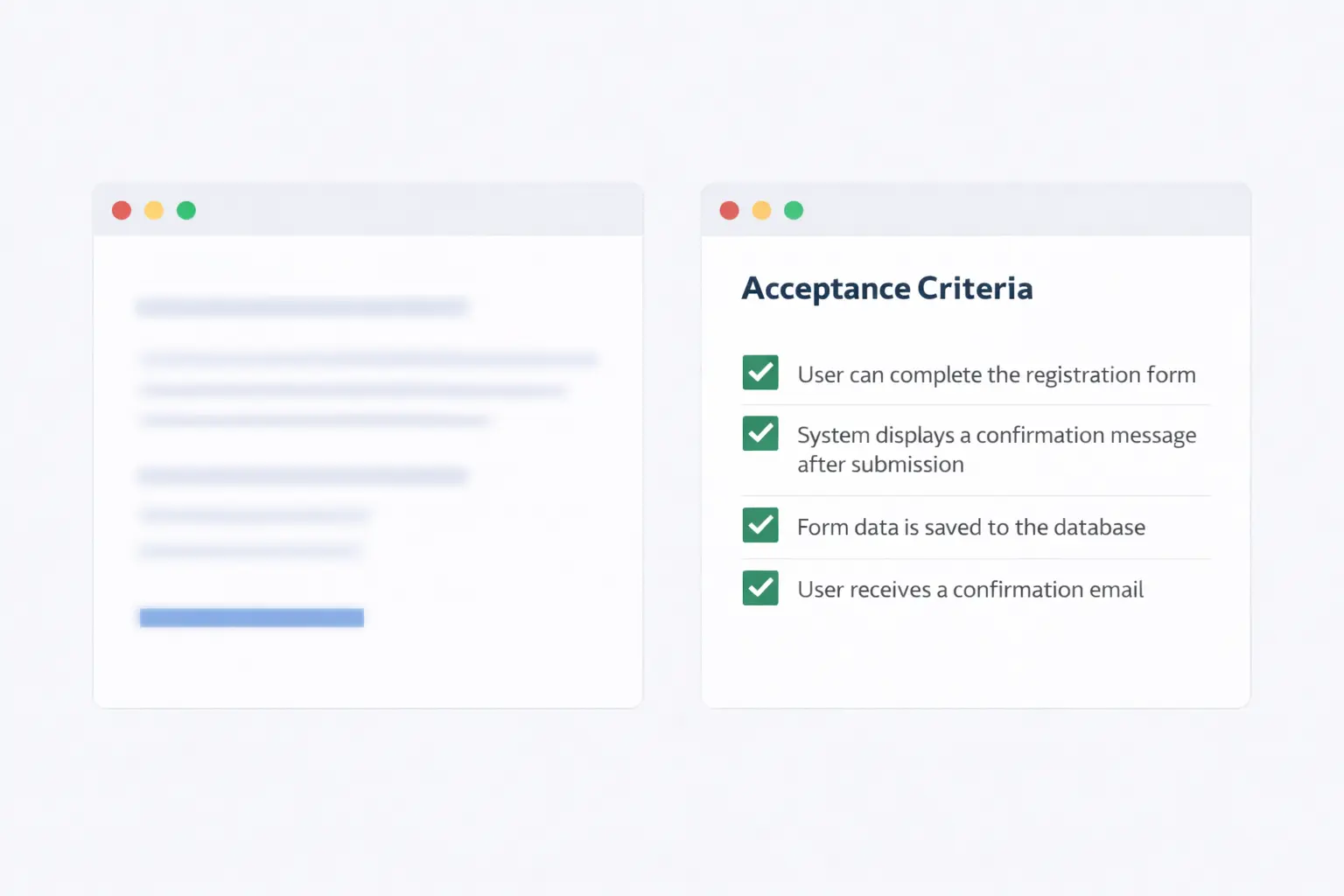
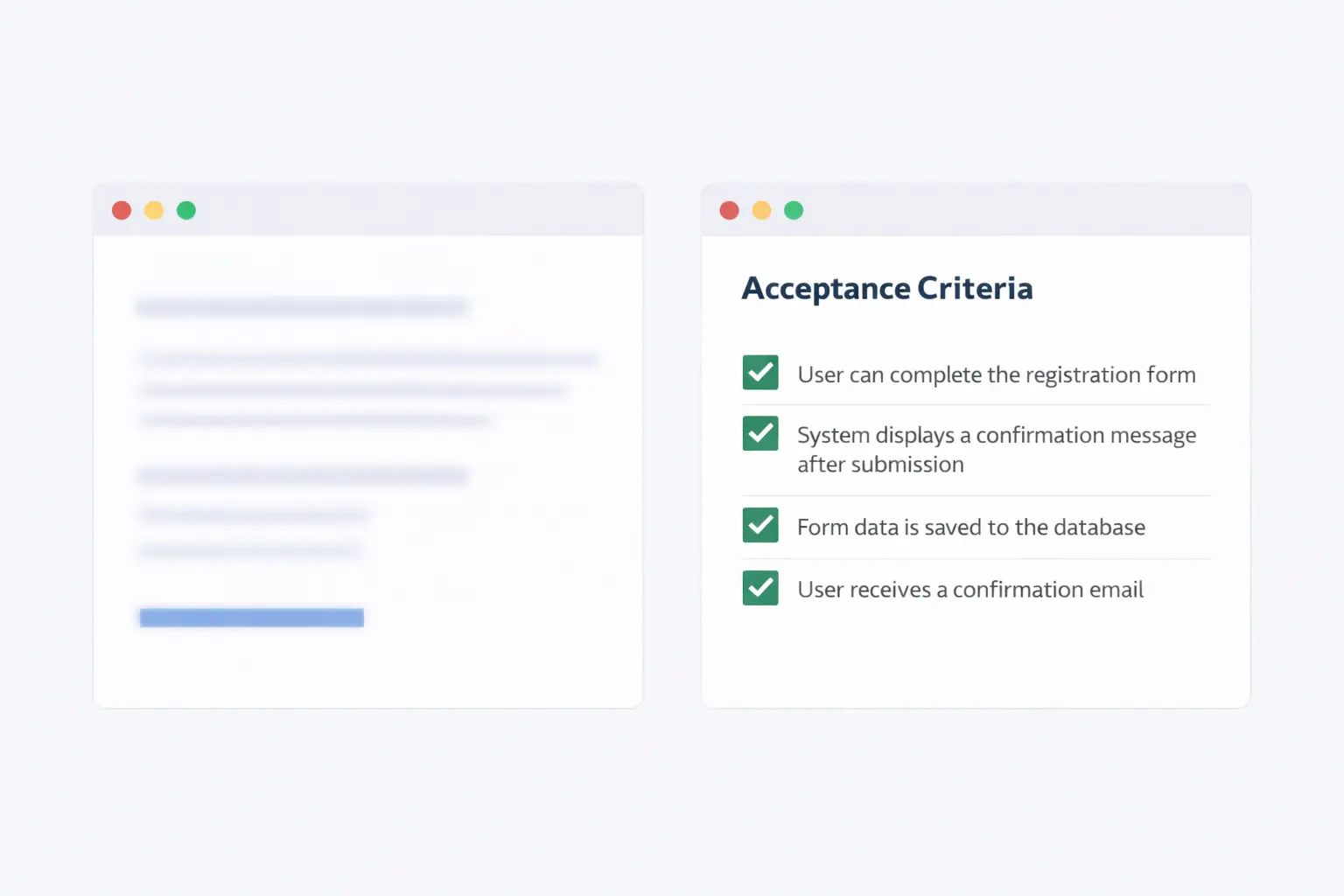
Acceptance criteria is a list of conditions that must be met for a task to be considered "done." It should be testable, measurable, and closed to interpretation.
NOT acceptance criteria:
"The user experience should be good"
"It should work fast"
"It should look clean"
"It should show errors properly"
Acceptance criteria:
"Clicking the Save button should produce a response within 2 seconds"
"When an invalid email format is entered, the message 'Enter a valid email address' should be shown"
"When a file larger than 5MB is uploaded, an error message should appear without the page reloading"
"At 375px width on mobile, all form elements should be fully visible with no horizontal scroll"
The difference is clear: the first group is open to interpretation, the second is testable.
Acceptance Criteria Template for Alios Node Descriptions
In Alios, the following template gets applied to every task node. Filling in the entire template isn't mandatory — it scales to the size of the task. But the "Acceptance Criteria" section always gets filled.
📌 TASK DEFINITION

Title: [What will be done — one sentence,
ending with a verb]
Owner: [Developer name]
Deadline: [Date]
Priority: [Critical / High / Medium / Low]

🎯 PURPOSE
[Why was this task opened? What user need or
technical requirement does it address? 1-2 sentences.]

📐 SCOPE
[What WILL be done — and what WON'T. Drawing
clear boundaries prevents scope creep.]

✅ ACCEPTANCE CRITERIA
[Each item must be testable and closed to interpretation]

Functional:
- [ ] [When user does X, Y should happen]
- [ ] [In Z situation, W should be shown]
- [ ] [Under condition A, B should be blocked]

Error states:
- [ ] [Error scenario 1 — expected behavior]
- [ ] [Error scenario 2 — expected behavior]

Performance / Technical:
- [ ] [Load time / size / compatibility criteria]

Design / UI:
- [ ] [Mobile behavior]
- [ ] [Empty state display]
- [ ] [Loading state]

🔗 REFERENCES
Figma: [Link]
Related node: [Linked task or epic]
Technical spec: [Link if available]

⏭️ COMPLETION CONDITION
All acceptance criteria above have been met and
[QA / product manager / relevant person] has approved.
Example: "Profile Photo Upload" Feature
What does the filled template look like? Using a realistic feature:
📌 TASK DEFINITION

Title: Add profile photo upload feature for users
Owner: Ali
Deadline: Thursday, March 20
Priority: High

🎯 PURPOSE
Because users couldn't upload a profile photo,
the avatar area stays empty. This gap lowers
onboarding completion rate. Adding photo upload
will close the profile completion step.

📐 SCOPE
WILL BE DONE: Photo upload, crop, save,
display on profile page.
WON'T BE DONE: Photo filters, pulling from
social media, multiple photos — these go in
the next iteration.

✅ ACCEPTANCE CRITERIA

Functional:
- [ ] Clicking "Upload Photo" on the profile page
      should open the file picker
- [ ] JPG, PNG, and WebP formats should be accepted
- [ ] After selecting a photo, a crop screen should
      appear with 1:1 ratio cropping available
- [ ] Clicking "Save" should instantly show the photo
      on the profile page without a page reload
- [ ] The saved photo should also appear updated
      in the header avatar area

Error states:
- [ ] When a file over 5MB is selected, the message
      "Maximum file size is 5MB" should be shown
      and upload should not start
- [ ] When an unsupported format is selected (GIF,
      PDF, etc.), the message "Only JPG, PNG, or
      WebP can be uploaded" should appear
- [ ] If the connection drops during upload, an error
      message should be shown and the current photo
      should be preserved

Performance / Technical:
- [ ] The displayed photo after upload should be
      compressed to stay under 200KB
- [ ] Upload operation should complete in under 3
      seconds (normal connection, 1MB file)

Design / UI:
- [ ] On mobile (375px), the full upload flow should
      be visible with no horizontal scroll
- [ ] When no photo exists, a default avatar should
      show (initial letter or placeholder)
- [ ] During upload, a spinner or progress bar should
      show and the button should be disabled

🔗 REFERENCES
Figma: [Profile page design link]
Related node: "User Profile Page Improvements" epic
Technical spec: S3 upload documentation

⏭️ COMPLETION CONDITION
All acceptance criteria above have been met and
the product manager has approved in staging.
Things to Watch When Using the Template
Use the "When user does X, Y should happen" format. This format automatically makes acceptance criteria testable. Instead of "should look good" — "when the user selects a photo, the crop screen should open."
Don't skip error states. The happy path of a feature always works. The vast majority of revisions come from error states. Without filling this section, the task isn't considered written.
Write what's out of scope. The "won't be done" list prevents scope creep. The developer knows what isn't part of this task. The question "should we add this too?" gets answered by looking at the acceptance criteria.
Tie the output to criteria, not to a person. Not "done when Ali approves" — "done when these criteria are met." This distinction both increases accountability and removes the ambiguity created by personal interpretation.
Final Thought
Using an acceptance criteria template looks like it slows things down at first. Opening a task takes 15 minutes instead of 5.
But those 15 minutes save time lost to revisions, "that's not what I meant" debates, rewritten code, and the time both parties spent on all of that. A clearly written task usually gets delivered correctly the first time.
Using this template in Alios as a node description doesn't require a separate tool. The task gets opened, the template gets filled, the developer gets started. The revision cycle ends before it begins.